
Android App Guide
Overview
The Android app operates in two modes: Host (share your connection) and Client (connect to another host).
Installation
- Download the latest APK from the Download page.
- Open the APK file on your phone.
- If prompted, enable Install from unknown sources.
- Complete the installation.
Host Mode (Share Your Connection)
Use this mode to share your phone's cellular data with other devices.
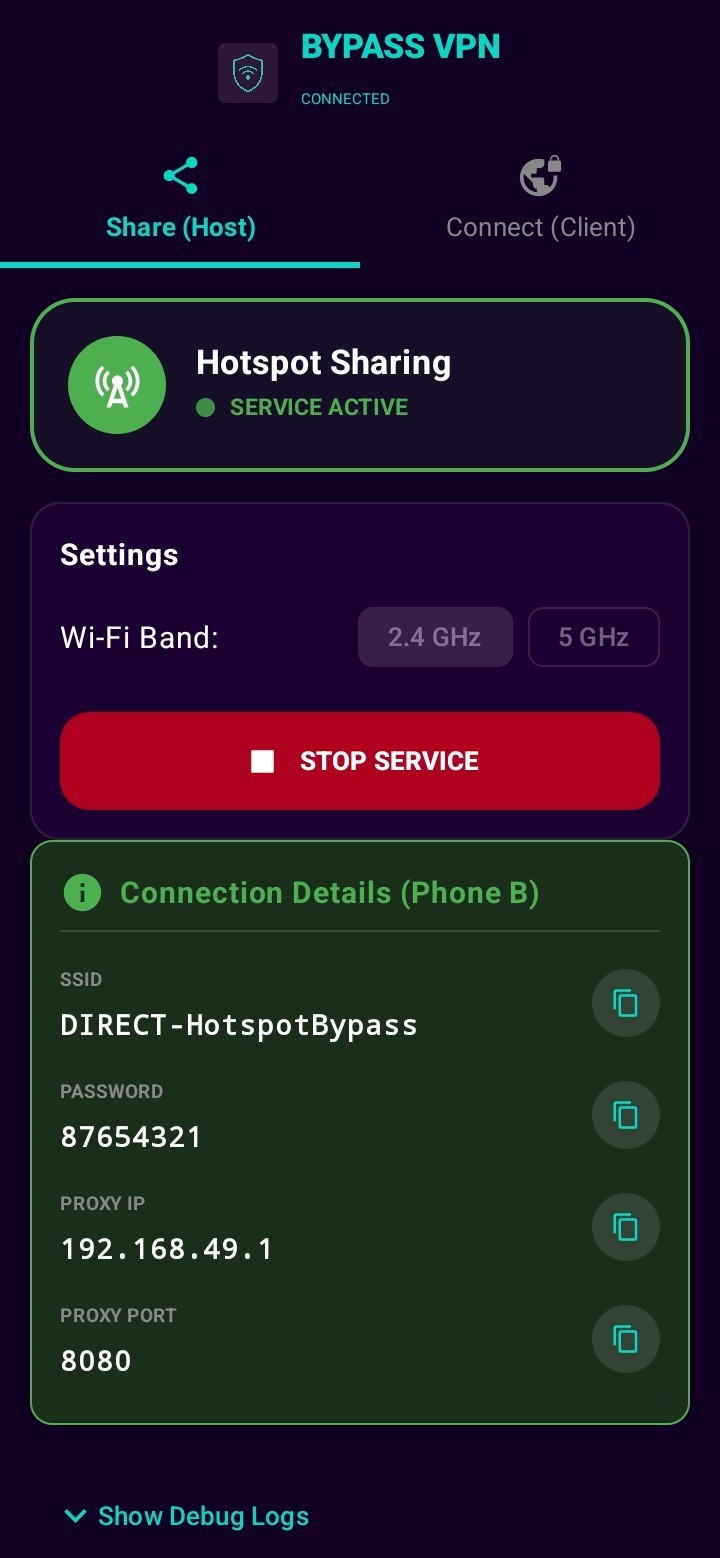
Host mode showing connection information
Step 1: Grant Permissions
When you first tap Start Host, the app will request:
- Location permission — Required by Android for Wi-Fi Direct discovery
- Notification permission — Required for foreground service
- Battery optimization ignore — Prevents the system from killing the service
Grant all permissions for the best experience.
Step 2: Configure Settings
Before starting, you can configure:
- Wi-Fi Band — Choose 2.4GHz (better range) or 5GHz (lower latency, recommended for gaming)
- Check that Private DNS is set to Off or Automatic (not a custom DNS provider)
Step 3: Start Hosting
- Tap the HOST tab at the top.
- Tap Start Host.
- A notification will appear: "Hotspot Bypass Host" — this confirms the service is running.
- The screen will display connection details:
- SSID:
DIRECT-HotspotBypass - Password:
87654321 - Proxy IP:
192.168.49.1 - Proxy Port:
8080
- SSID:
- Tap the copy icons next to each field to share with clients.
Step 4: Client Devices Connect
Tell your clients to:
- Open Wi-Fi settings on their device.
- Connect to the network DIRECT-HotspotBypass.
- Enter password 87654321.
- Configure their device or app to use the SOCKS5 proxy at
192.168.49.1:8080.
Client Mode (Connect to a Host)
Use this mode when another phone is running in Host mode.
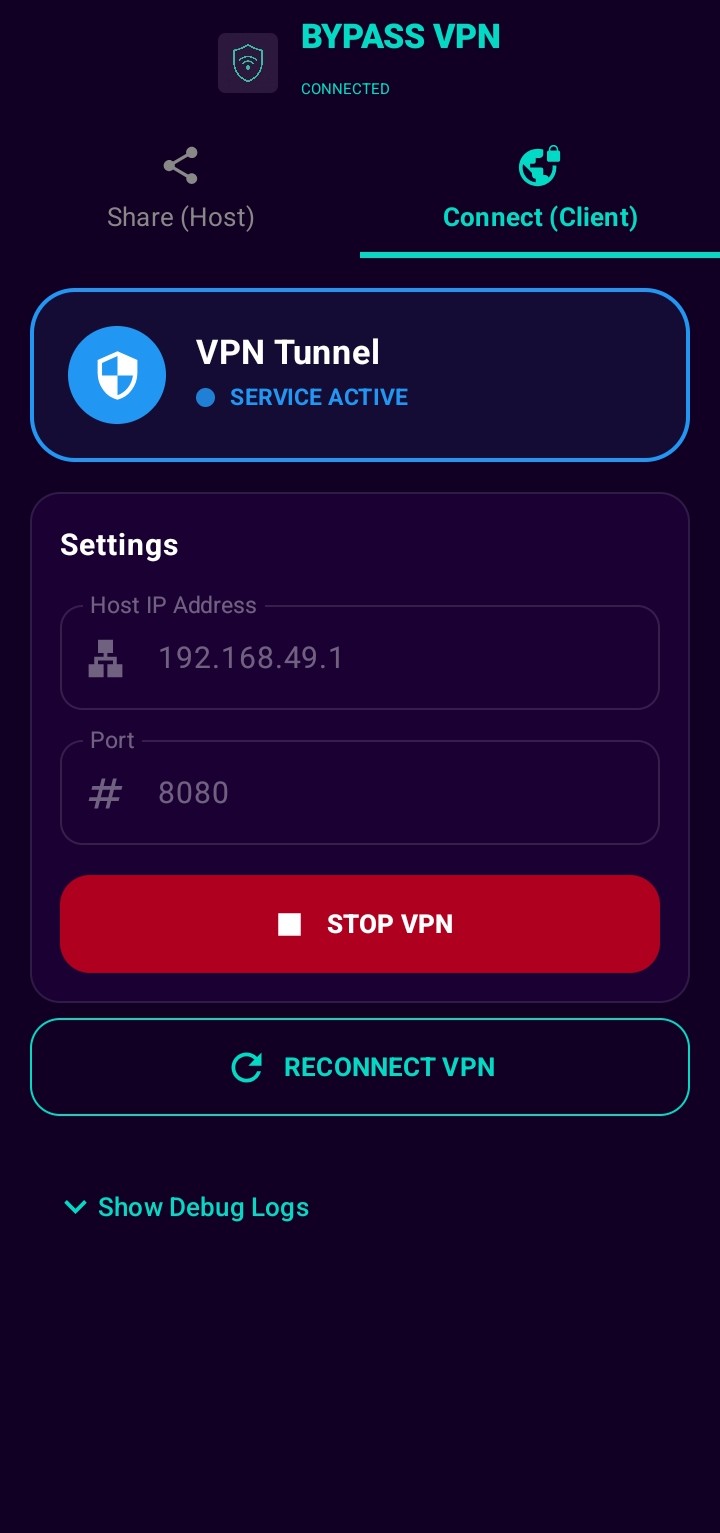 Client mode showing VPN connected status
Step 1: Grant Permissions
Similar to Host mode, the app will request location, notification, and battery optimization permissions.
Step 2: Connect
- Tap the CLIENT tab at the top.
- Tap Start Client.
- The app will:
- Scan for Wi-Fi Direct networks
- Connect to the Host's network
- Start a local VPN that tunnels all traffic through the Host's SOCKS5 proxy
- A VPN notification will appear: "Hotspot Bypass VPN"
Step 3: Verify
- Open a browser — your traffic should now be routed through the Host's connection.
- Check the debug log (expandable at the bottom of the screen) for connection status.
Troubleshooting
| Issue | Solution |
|---|---|
| Can't find Host network | Make sure both devices have Wi-Fi Direct enabled. Try toggling Wi-Fi off/on. |
| VPN connection fails | Tap Reconnect VPN button. If it persists, restart the app. |
| Slow speeds | Try switching to 5GHz band on the Host side. Ensure good signal between devices. |
| Private DNS warning | Go to Settings → Network & Internet → Private DNS → set to Off or Automatic. |
| Service stops after screen off | Grant Ignore battery optimization permission to the app. |
| Connection drops | Both devices should stay within Wi-Fi Direct range (typically 30-50 meters). |
Debug Log
The app includes a built-in debug log viewer at the bottom of the screen. Tap it to expand and view real-time diagnostic information. This is useful for troubleshooting connection issues.